We use cookies to provide you with a great user experience, analyze traffic and serve targeted promotions.   Learn More   Accept
P O R T O F S A L A L A H

Customer Portal

Unlocking tomorrow’s potential today

Contact Us

We are here to help!

Customer Support

Enhancing the customer experience

Help

Customer Portal

Customer portal helps customers of Port Of Salalah for making online payments of their container services. Customers can also log requests for services such as Container lookup, Vessel schedule ,Truck transaction. Customers can pay their demurages and empty inspection charges after registering with the system. Each customer need s to be commercialy registered with port of salalah to create an account in the system. The following topics are covered under the customer portal module:


1. Container Lookup
Customers to search container status by input of multi containers or BL number, output required is as per list below
  • Container Load /Discharge
  • Container type
  • Last move
  • Line
  • Vessel details
  • Port of Load / Port of discharge
  • Container Time in / out
  • BL/ Booking number
  • Category
2. Vessel Lookup

Vessel schedule for Container terminal and General Cargo terminal with Inbound /Outbound/ berth vessel. Detail includes as per list below

  • Vessel Type
  • ATA/ ATD
  • Purpose of call
  • Agent
  • Berth#
  • Last port / Next Port
  • Line Operator
3. Demurrage Payment

Customer will get the final charges details of containers before paying; once payment is processed successfully through banking e-channel, Final invoice will be generated and saved for further reference.

4. Empty inspection charges Payment

After doing the Appointment in the portal users can come here and do the payments.

5. OSS charges Payment

Registering a New User

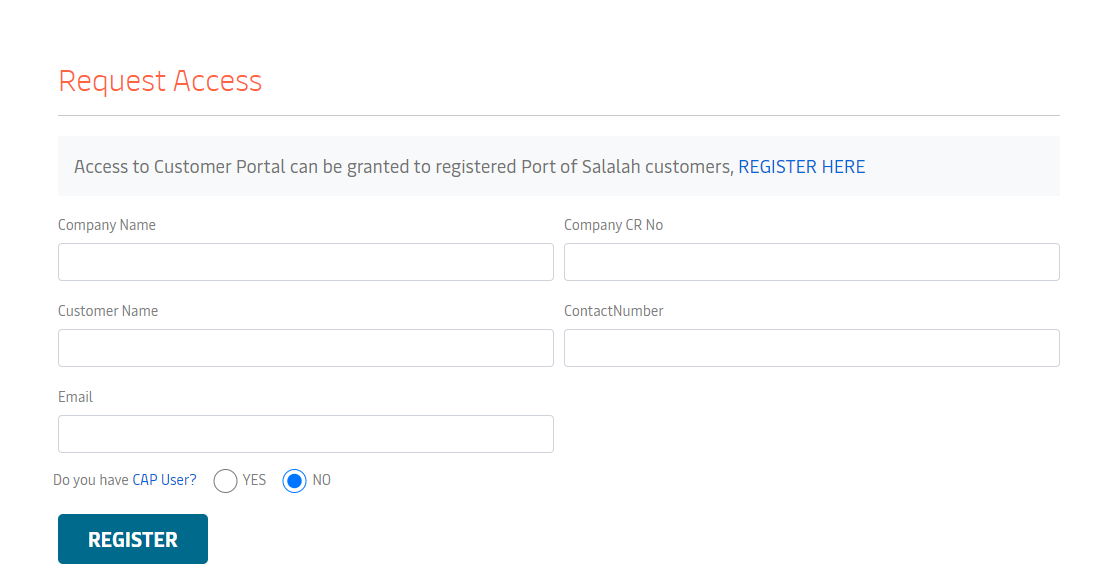
To register as a new user,
Click Register button. A Registration screen is displayed.

Eservices

Customer portal required for customers where he can be able to view info related to his containers, vessel schedule, and Trucks transactions done in and out of port premises. Customer should be able to pay container demurrage charges, inspection payment.

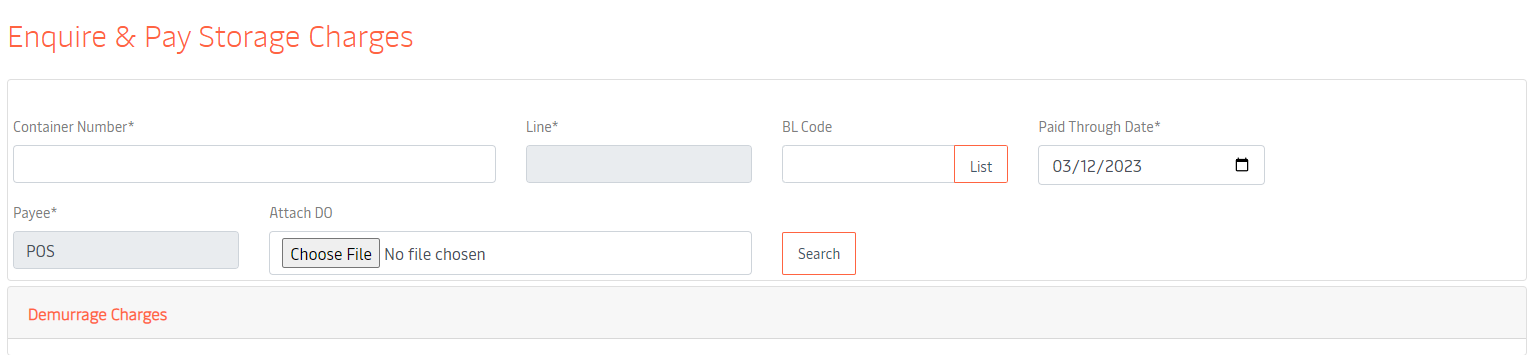
Enquire & Pay Storage Charges

Customer can do payment inquiry before paying for demurrage of Full Import containers.
Customer to input Container number, paid thru date, Truck number and date of arrival to confirm payment inquiry details.
Steps
1.Enter the container number and press tab.
2.Line will be automatically displayed if the container is present in the system.
3.Select the paid through date.
4.Payee is selected as per the customer login.
5.Attach valid Delivery order.
6.Click on search button.
7.Charges will be displayed, click on continue to payment which will be redirected to payment gateway.
8.Please wait untill the transaction is completed and the invoice will available after the successfull payments.
Fields and Button Description
Container Number User need to enter Container Number
Line Automaticallly fetched from the system if container is present.
BL Code User to search the containers on bl number
Paid Through Date User needs to select Paid Through Date
Payee Shows the Payee registred in the system, fetched from login.
Attach DO User needs to attach a valid delivery order from the line.

Inspection Charges

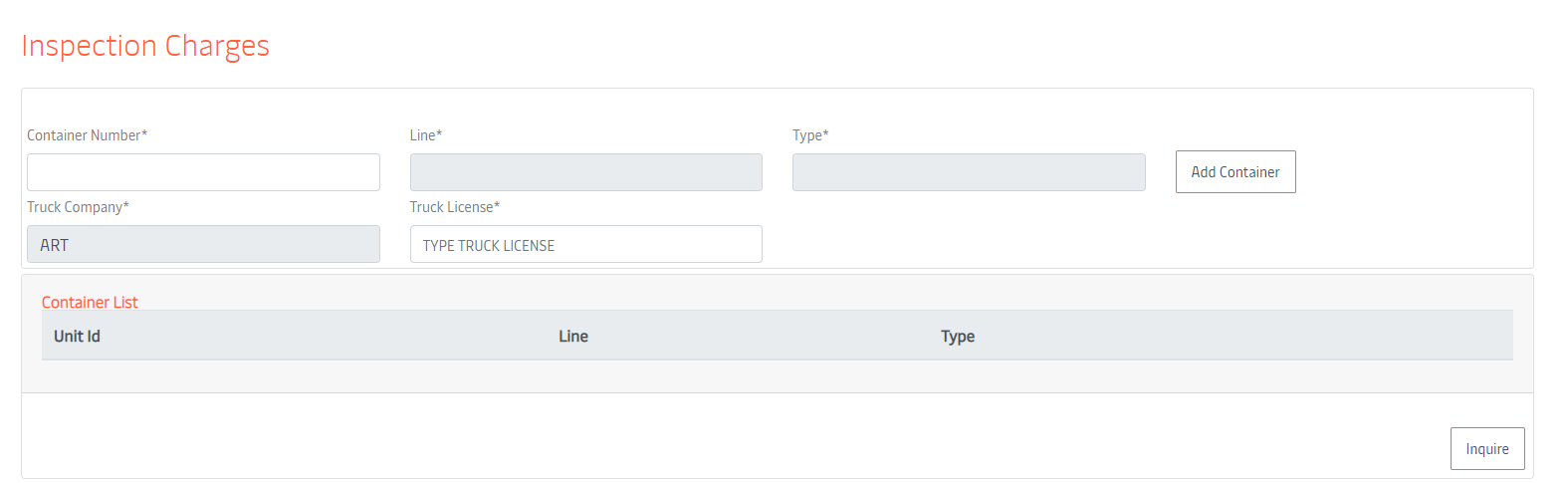
Customer should do appointment and do inspection payment for empty containers through online e-payment gateway.
Customer to input Container number, Truck number and date of arrival to confirm pre gate process and then proceed to do payment of Inspection.
Steps
1.Enter the container number and press tab.
2.Line and Type will be automatically displayed if the container is present in the system.
3.Enter the truck license number (Should be same as that give in Pregate).
4.Payee is selected as per the customer login.
5.Click on search button.
6.Attach valid Delivery order.
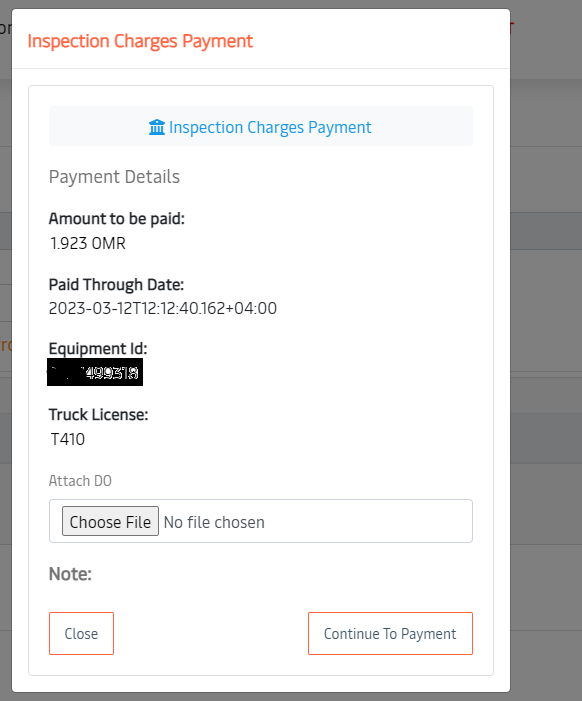
7.Charges will be displayed, click on continue to payment which will be redirected to payment gateway.
8.Please wait untill the transaction is completed and the invoice will available after the successfull payments.
9.Charges will be only displayed if the appointment is done.
Fields and Button Description
Container Number User need to enter Container Number
Line Automaticallly fetched from the system if container is present.
Type Automaticallly fetched from the system if container is present.
Truck Company Automaticallly fetched from the system on user login.
Truck License User needs to enter the same Truck License give for pregate.
Attach DO User needs to attach a valid delivery order from the line.

Pending Transaction/Trouble Transactions

Why do transactions fail?

Transactions failing with money getting debited may happen for a variety of reasons, including:

1.Technical errors

A temporary technical glitch in the payment gateway or processing system can lead to failure of your transaction while the money is debited..

2.Network Issues

If you are not in a proper network area or the network is interrupted, it may lead to improper communication between the merchant, the payment gateway, and your issuer, leading to a failed transaction with money debited from your account.

How to resolve the trouble transactions

Customers must wait for some time and the system will automatically change the status of the transaction if it is valid.
1. The customer was unable to complete the transaction and the amount is debited from the customer account, but he didn’t receive any invoice.

2. In a maximum timespan of 10 mins the system will automatically recheck the failed transaction status with the bank and the user will get a resolve button in case the amount is credited.

3. The user can resolve the particular transaction and the invoice will be finalized as normal.

Reports

The Customer Portal provides a variety of reports designed to give users comprehensive insights into their activities and operations at the Port of Salalah. Certain reports are available based on user roles, such as shipping lines or trucking companies, depending on their login.

Vessel Reports (For Shipping Lines Only)

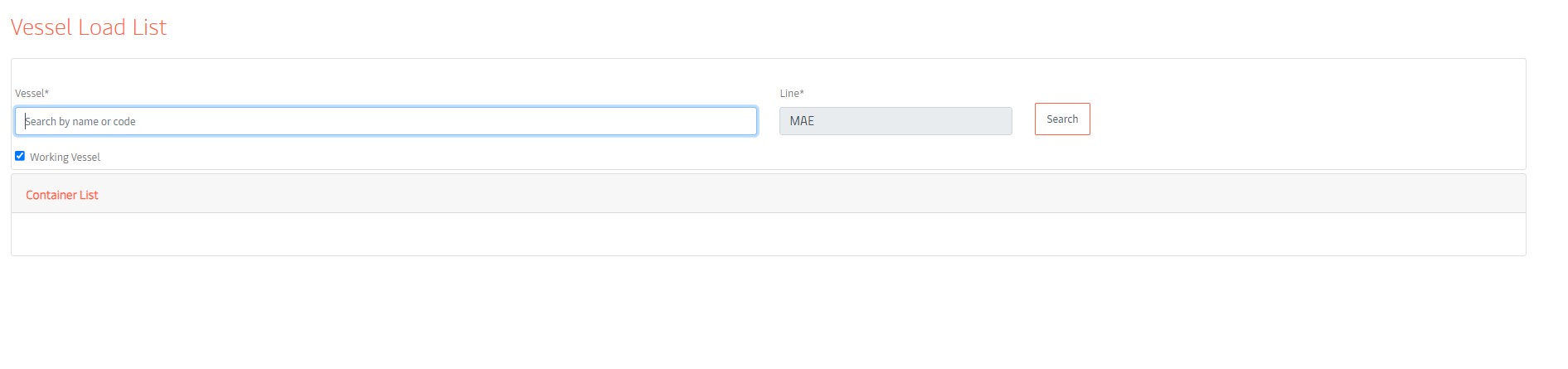
Users can search for vessel-related reports by typing the vessel name or vessel code in an autocomplete textbox. As they type, a list of matching vessels will be displayed, allowing quick selection.

  • Vessel Load List: Overview of container loads on vessels.
  • Vessel Discharge List: Details on containers being unloaded from vessels.

Yard Reports (For Shipping Lines Only)

  • Empty in Yard: Report on empty containers currently in the yard.
  • Reefer Empty List: Details of empty refrigerated containers.
  • Yard Inventory FCL: Comprehensive inventory of full containers in the yard.
  • Damage List: Report on containers with damage or issues.

Other Reports

  • Container Inquiry: In-depth information on individual container statuses and histories.
  • Vessel Schedule: Schedule and status of vessel operations.

General Reports (For Trucking Companies Only)

  • Appointments: Details and status of customer appointments.
  • Truck Transactions: Records of truck-related transactions and activities.
  • Customs Inspection Tracking: Status updates on customs inspections.

Customer Support

Customer Care
Tel(+968) 23 220 0436 Or 182 Or 540

Mail us at: customercare@salalahport.com